
This guide shows how to browse the MixSSL certificate catalog, narrow results with filters, compare products, and choose the right term and extra domain names before checkout. Screenshots use the GoGetSSL Multi-Domain SSL product (certificate #31) as an example — the same steps apply to other certificates.
Issuance is typically fast—often within about an hour under normal conditions, and up to one day in the worst case depending on how quickly you complete domain validation and the brand you selected.
Before you start
- A rough idea of the validation level you need (most small sites use Domain Validation / DV).
- Whether you need a wildcard or extra hostnames (SANs) on one certificate.
- Prices on MixSSL are shown in pounds sterling (£ / GBP) in the header currency selector.
Step 1 — Open the certificate catalog
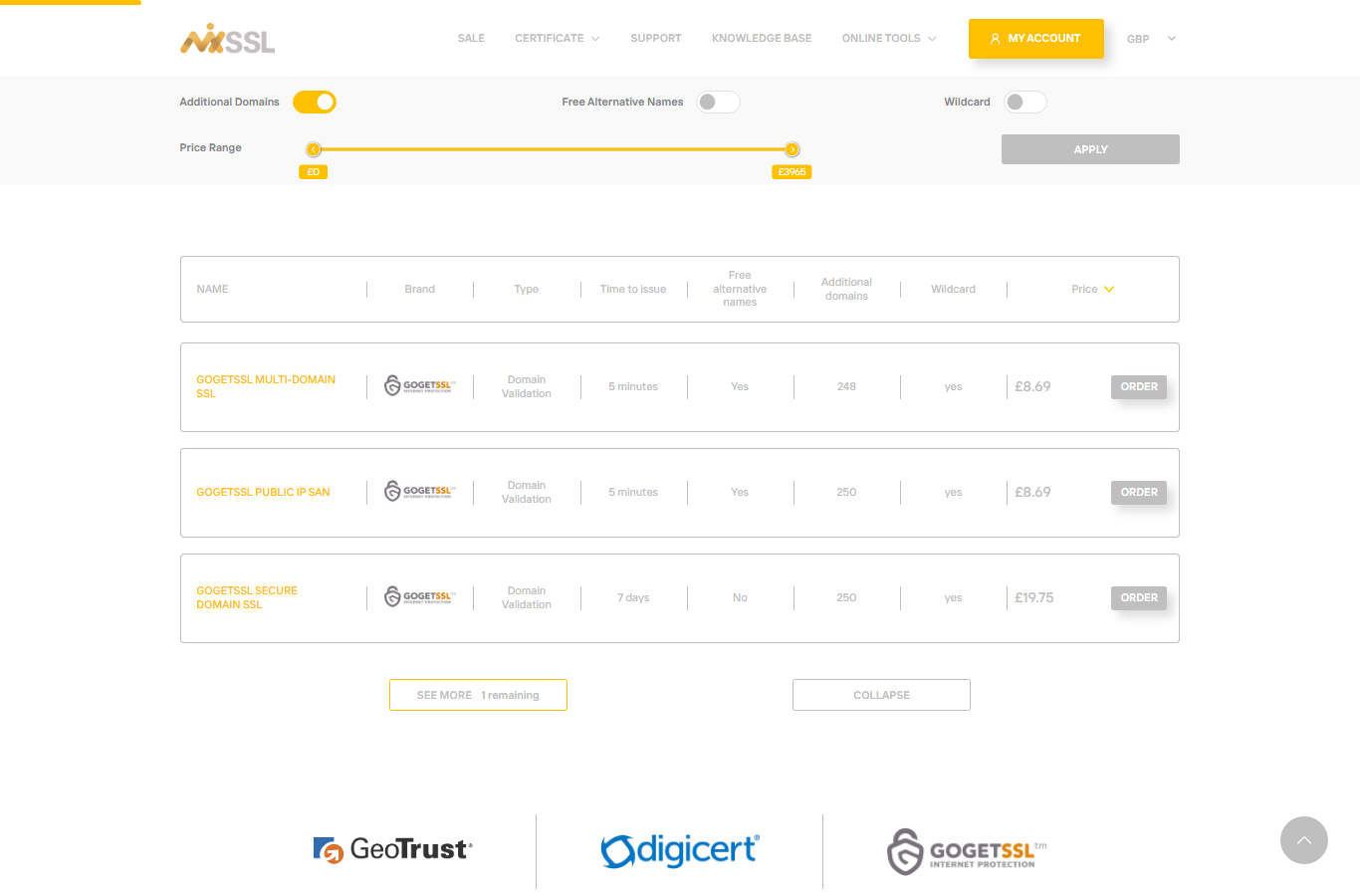
From the MixSSL home page, scroll to the certificate list below the hero video. Each row shows brand, validation type, price, issuance time, and whether free alternative names or additional domains are supported.
Step 2 — Use filters to narrow results
Use the filter bar to compare products:
- Brand — Comodo / GoGetSSL, Sectigo, DigiCert, and others.
- Type — DV, OV, or EV validation level.
- Issuing time — fast issuance vs longer validation.
- Additional domains, Free alternative names, and Wildcard toggles — show only products that support the features you need.
- Price range — drag the slider to match your budget.
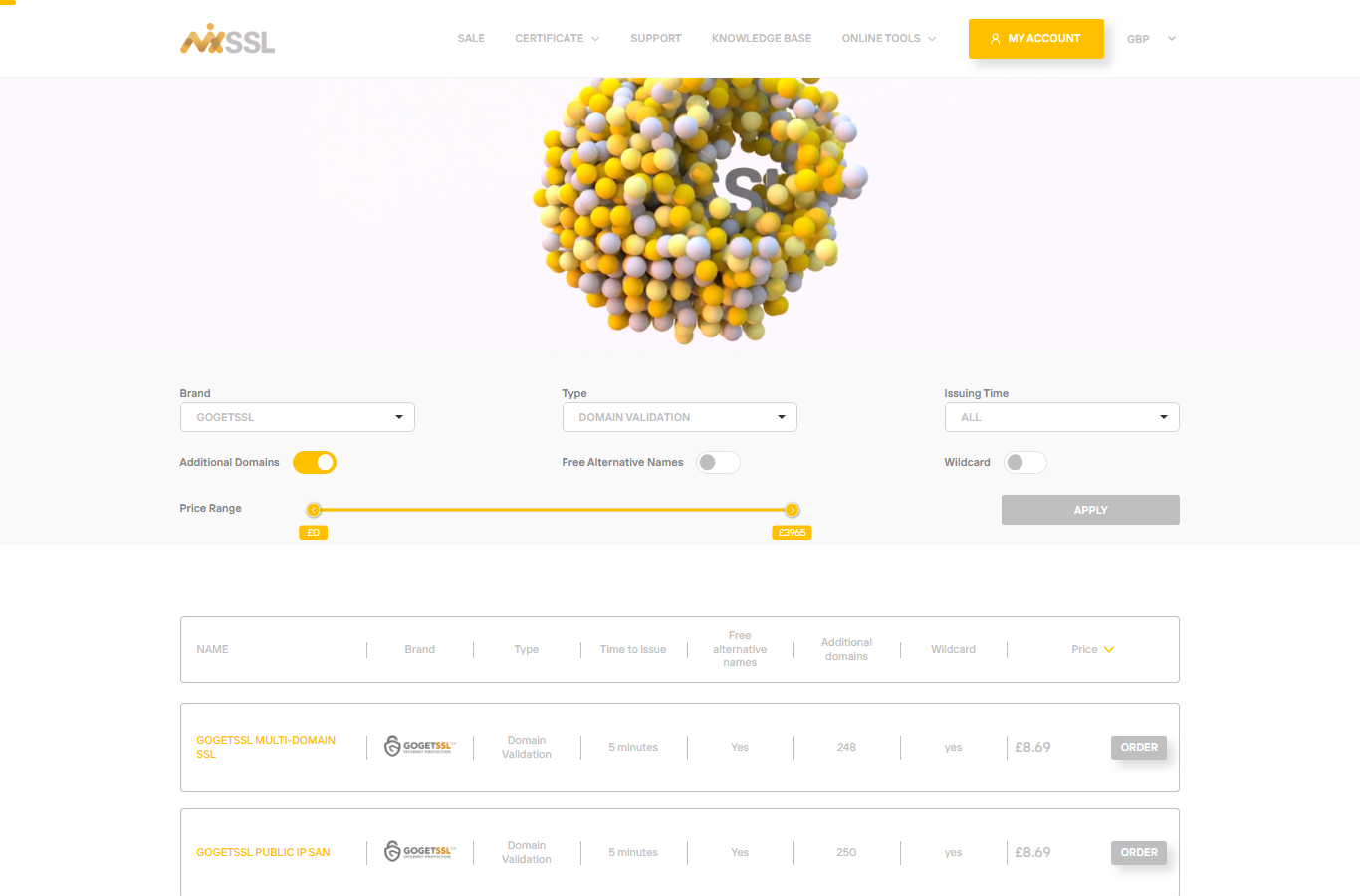
Example: choose Type → DV and enable Additional domains to list DV products that support extra hostnames — including GoGetSSL Multi-Domain SSL.
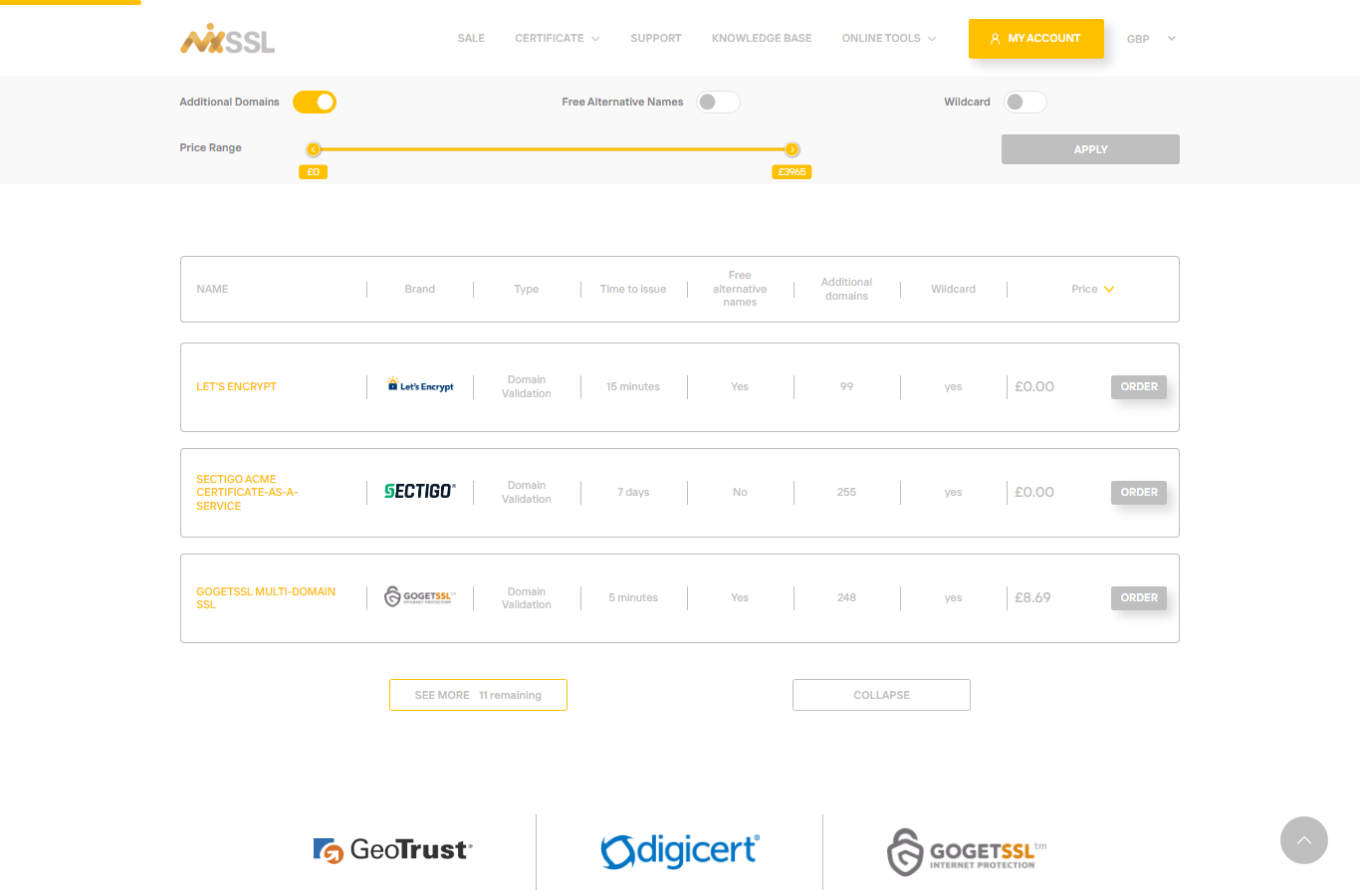
Step 3 — Open a product page
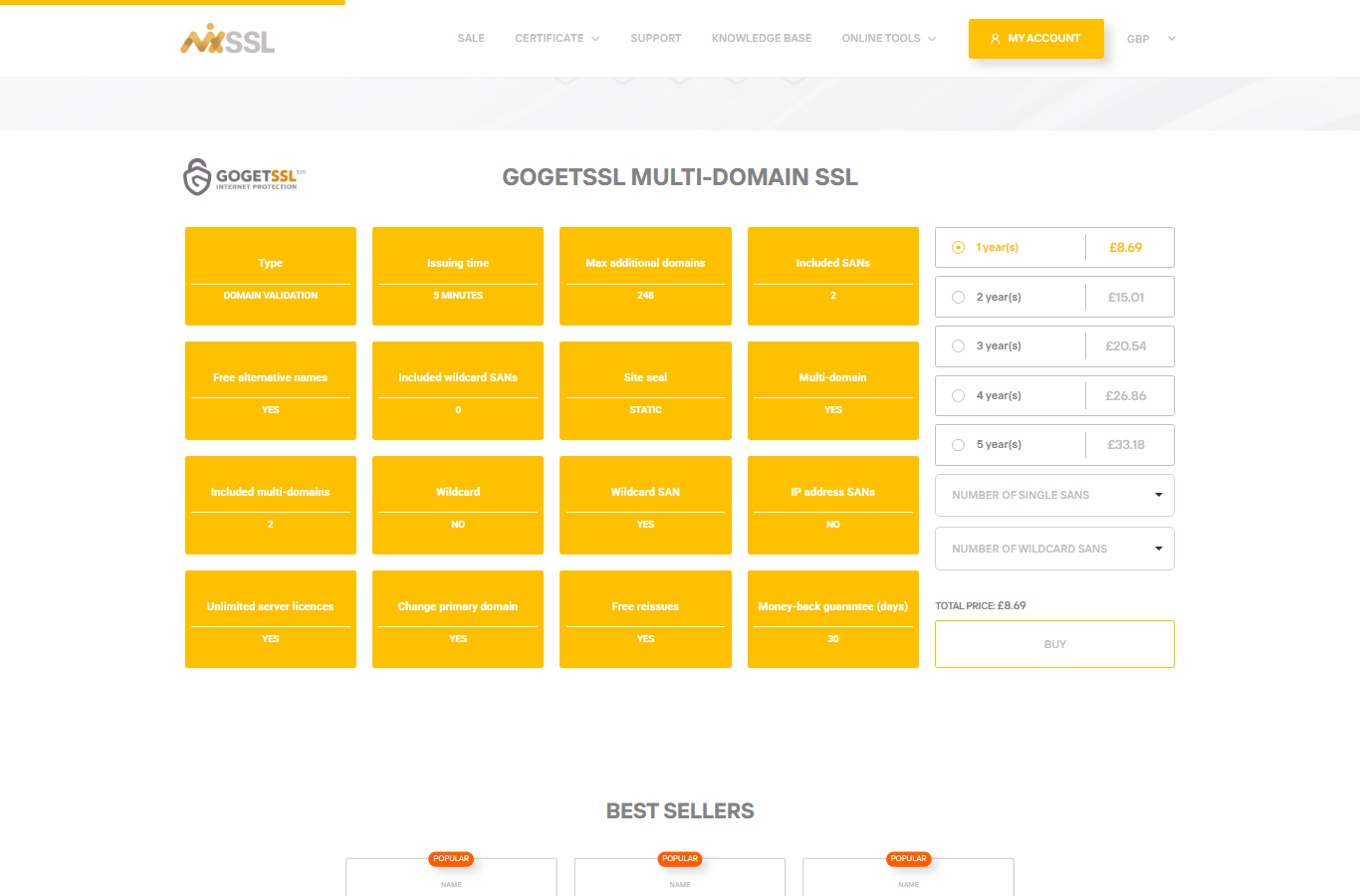
Click a certificate name or Buy to open its product page. Review validation type, max additional domains, included SANs, wildcard support, and site seal before you commit.
Step 4 — Choose term length
On the product page, select how long the certificate should last (term) when several options are offered — for example 1 to 5 years on a multi-domain product. The total price updates for your selection.
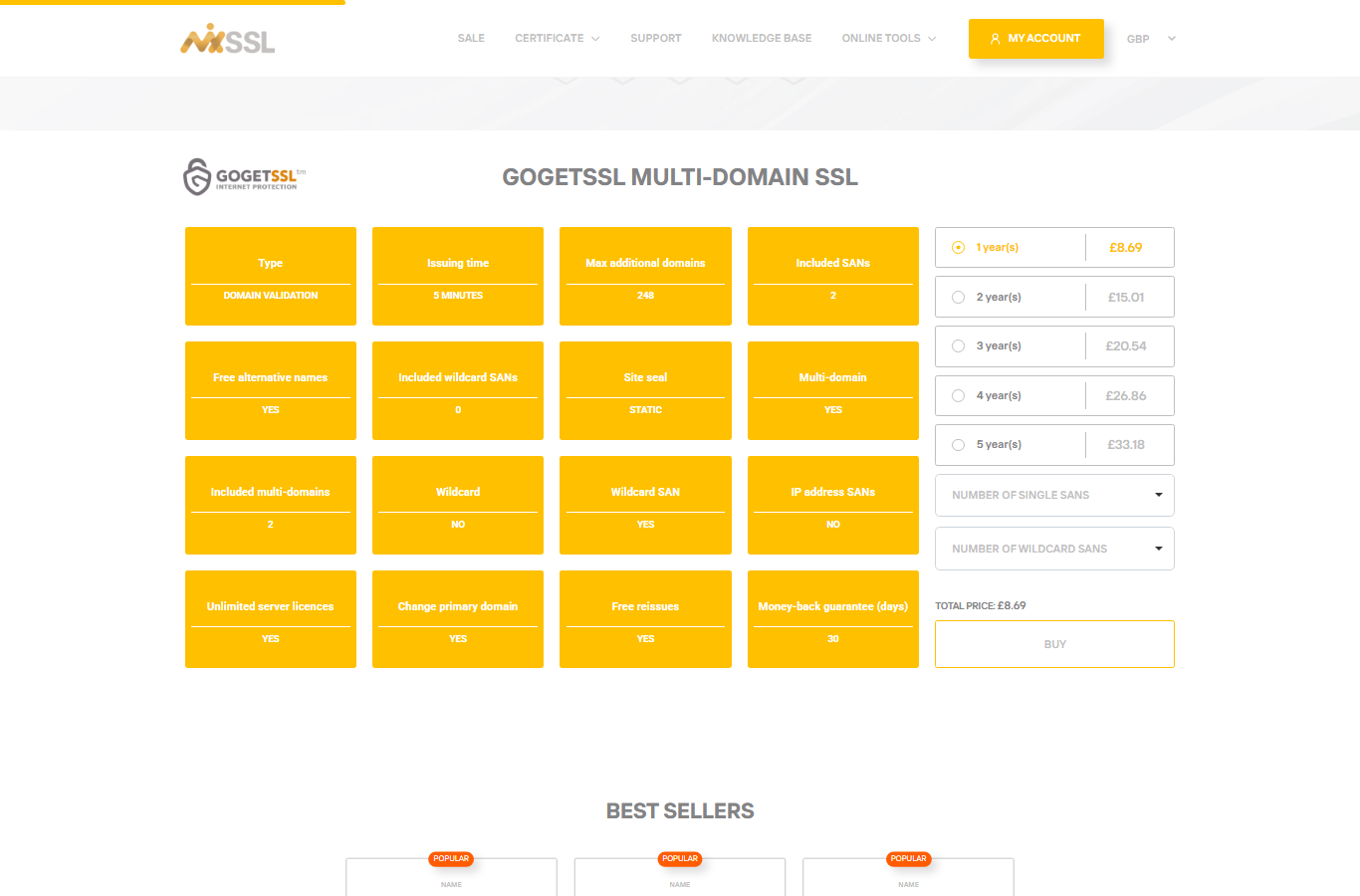
Step 5 — Set extra domain names (when supported)
If the product supports single SAN or wildcard SAN names, use the dropdowns on the product page or buy form. Leave them at zero when you only need one hostname. Options marked included in price are bundled with the base product.
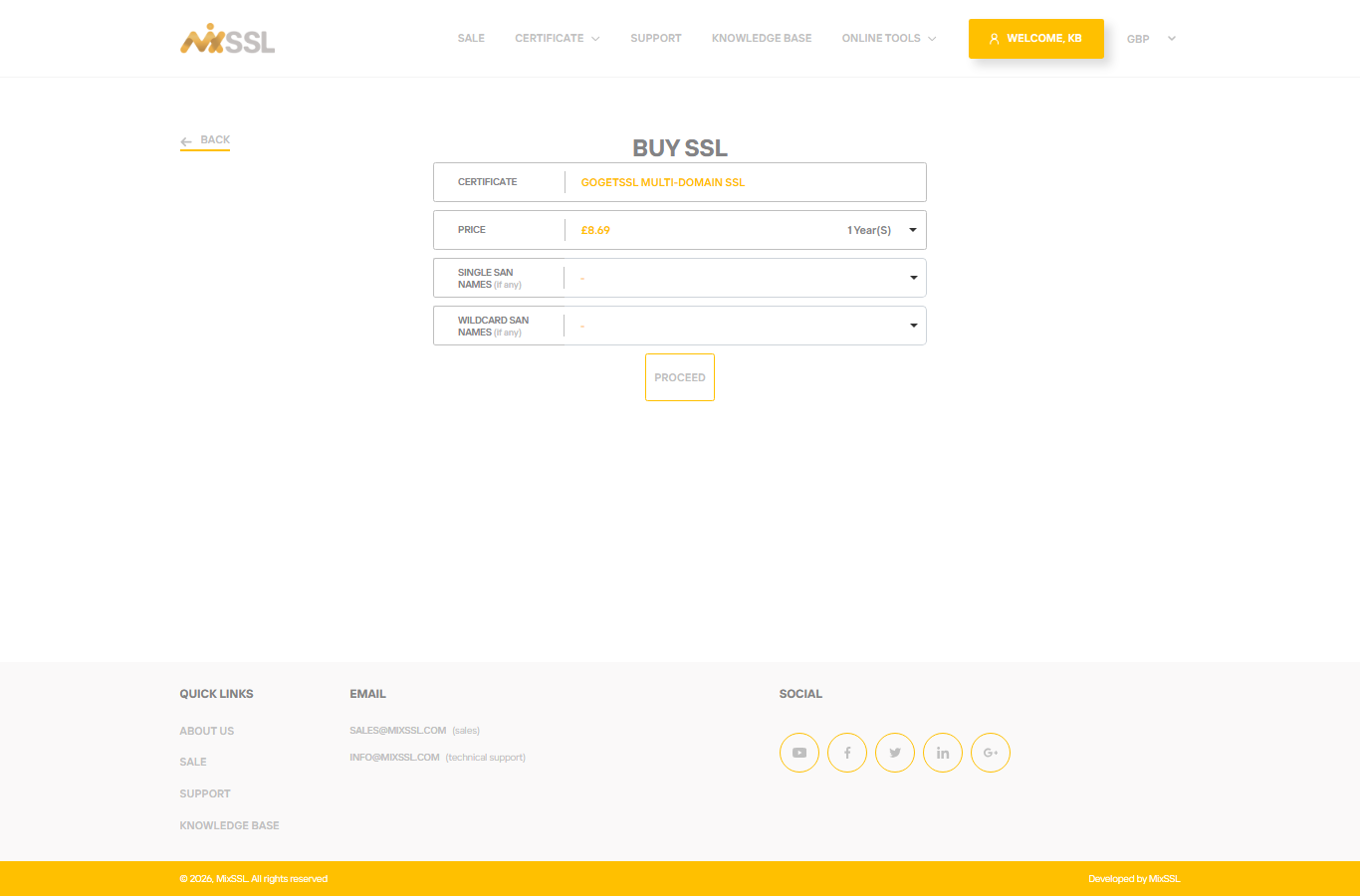
Step 6 — Review price in GBP
Catalog and buy pages show prices in the currency selected in the site header. Screenshots in this guide use GBP (£). You can switch display currency from the header menu before comparing or checking out.
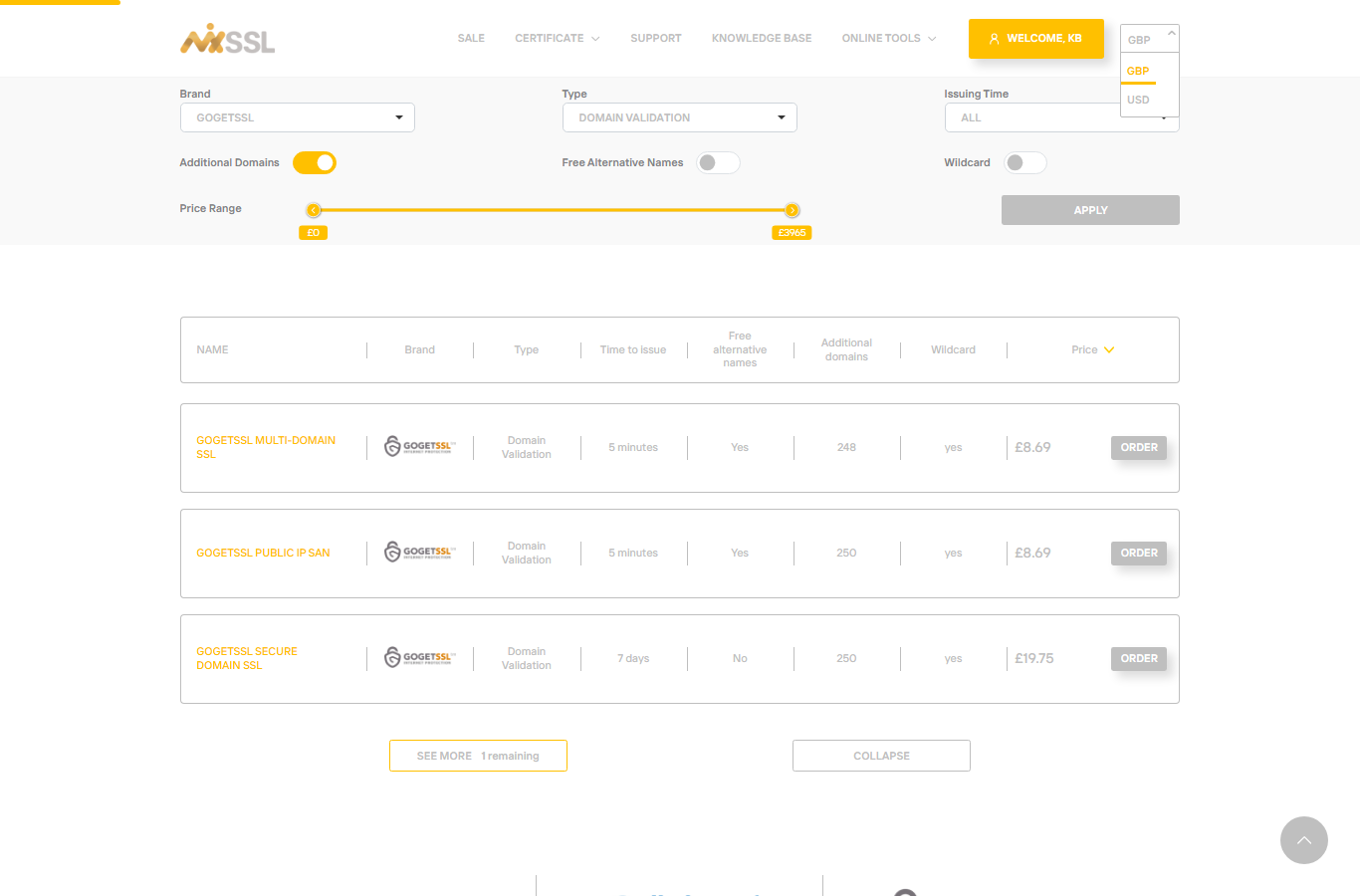
Step 7 — Proceed to checkout
When the product, term, and SAN count match your needs, click Buy on the product page or Proceed on the buy form. If you are not signed in, MixSSL asks you to log in or register first (see our article on account registration and email verification).
Getting help
Not sure which validation level or brand fits your site? Use the contact form on the MixSSL website.