
If visitors see warnings after you installed a certificate from MixSSL, work through this list. The free SSL Decoder helps confirm what is actually in the file on your server.
Step 1 — Check expiry and issuer
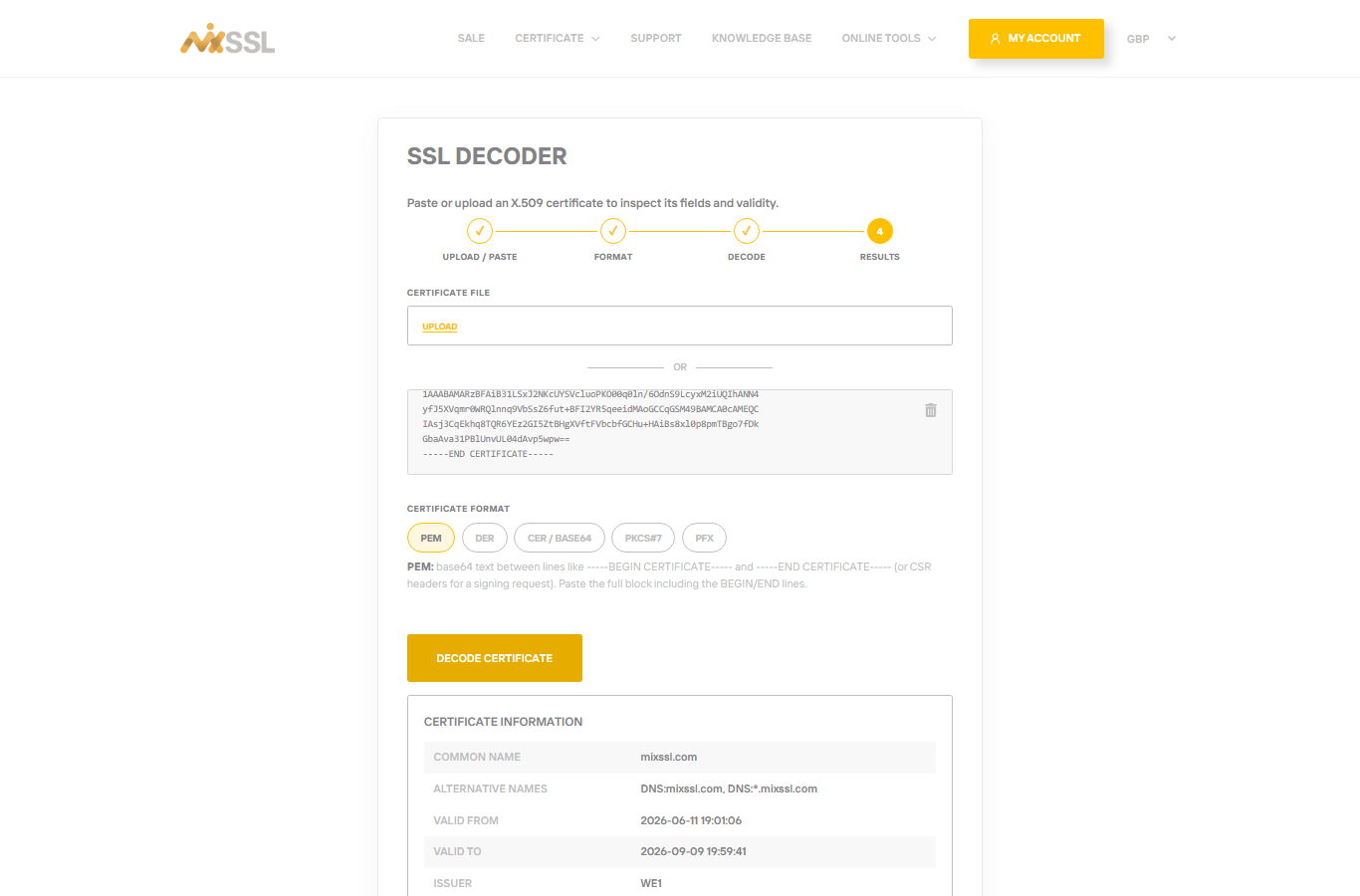
Paste the certificate from your server into the SSL Decoder. Compare Valid from and Valid till with today’s date.
Step 2 — Confirm hostname coverage
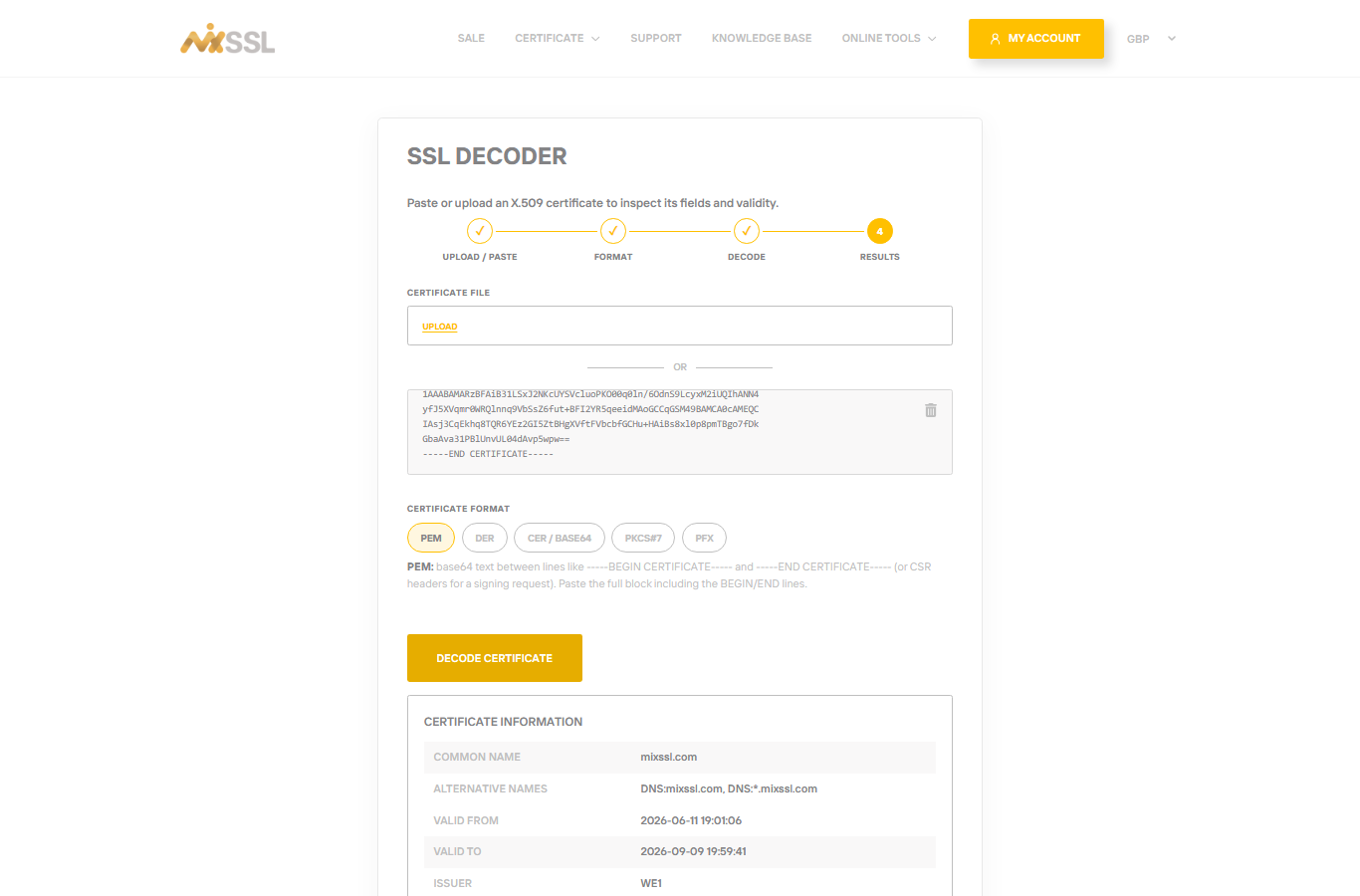
The URL must match a name on the certificate. Review common name and SANs in the decoder output.
Other common causes
- Incomplete chain — Install intermediate CA files from your MixSSL download.
- Wrong certificate on server — Old certificates sometimes remain in the panel; remove outdated entries and reload the web server.
- Wrong server or IP — DNS may point to a different machine than the one you updated. Confirm with your host.
- System clock — Servers with incorrect date/time can break TLS; rare on managed hosting but worth checking with support.
Step 3 — Retest in a private window
After changes, test in a private browser window. If the padlock is good there but not on your phone, clear cache or wait for DNS/CDN caches to update.
Getting help
Share decoder output and a browser screenshot via the contact form on the MixSSL website.