
Before the authority can issue a certificate, MixSSL checks your CSR in the order wizard. If verification fails, read the message shown—it usually points to the field to fix.
Common causes
- Domain typos — Names must be real hostnames you control (for example
shop.example.com), not URLs withhttps://. - Too many names — The CSR lists more additional names than you purchased. Remove extra SANs or upgrade the order.
- Wildcard rules — Wildcard products need names like
*.example.com. Non-wildcard products cannot use a star in the name. - IP addresses — Most products only allow domain names. Only specific “public IP” products accept IP addresses in the CSR.
- Key size — Use at least 2048-bit RSA keys for new orders.
- Country code — Use a supported two-letter code in the CSR subject (for example
GBfor the United Kingdom).
Step 1 — Inspect your CSR before you paste it
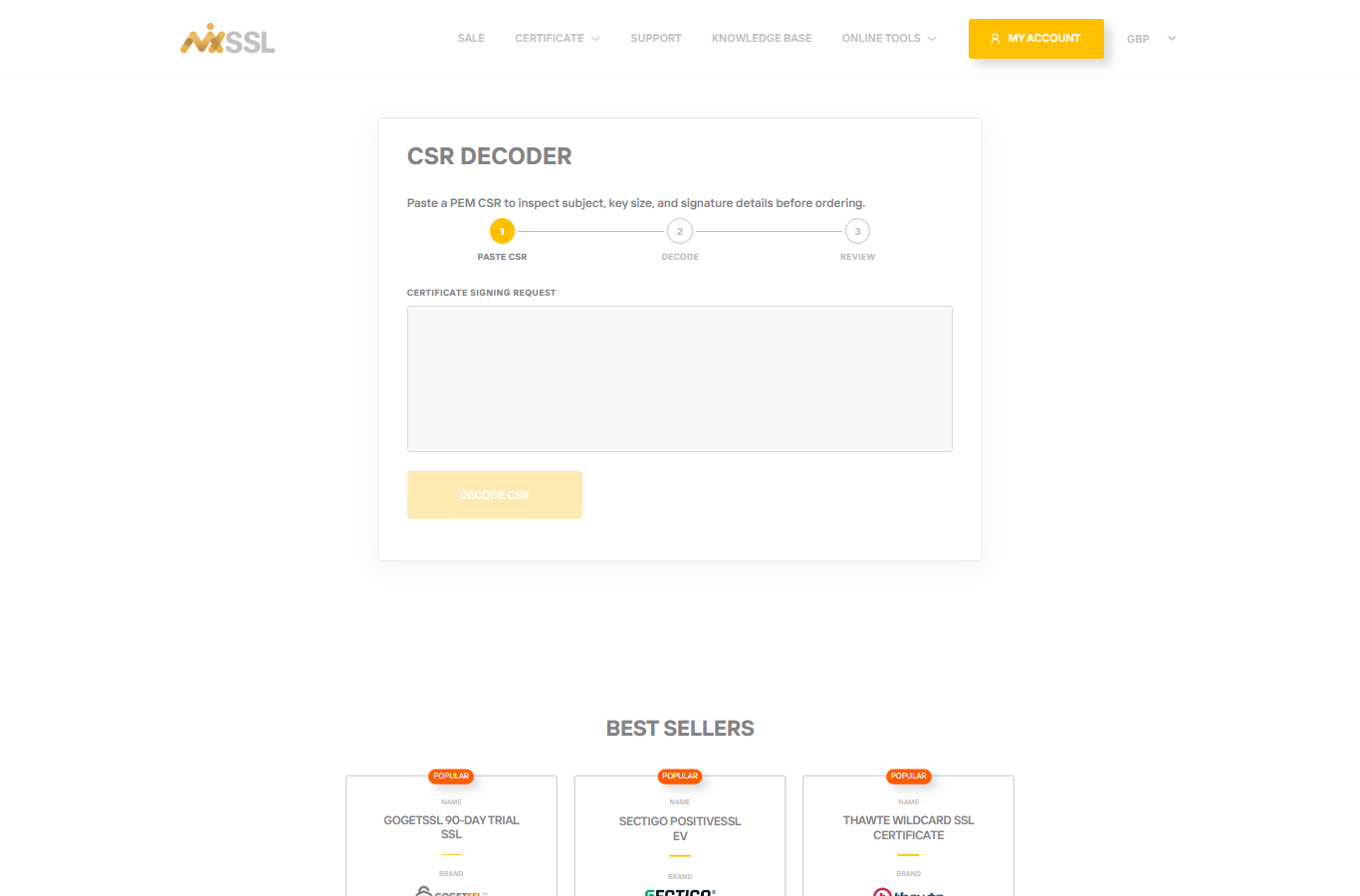
Open the free CSR Decoder on MixSSL. Paste your CSR and review the common name, key size, and any additional names.
Step 2 — Paste and verify in your order
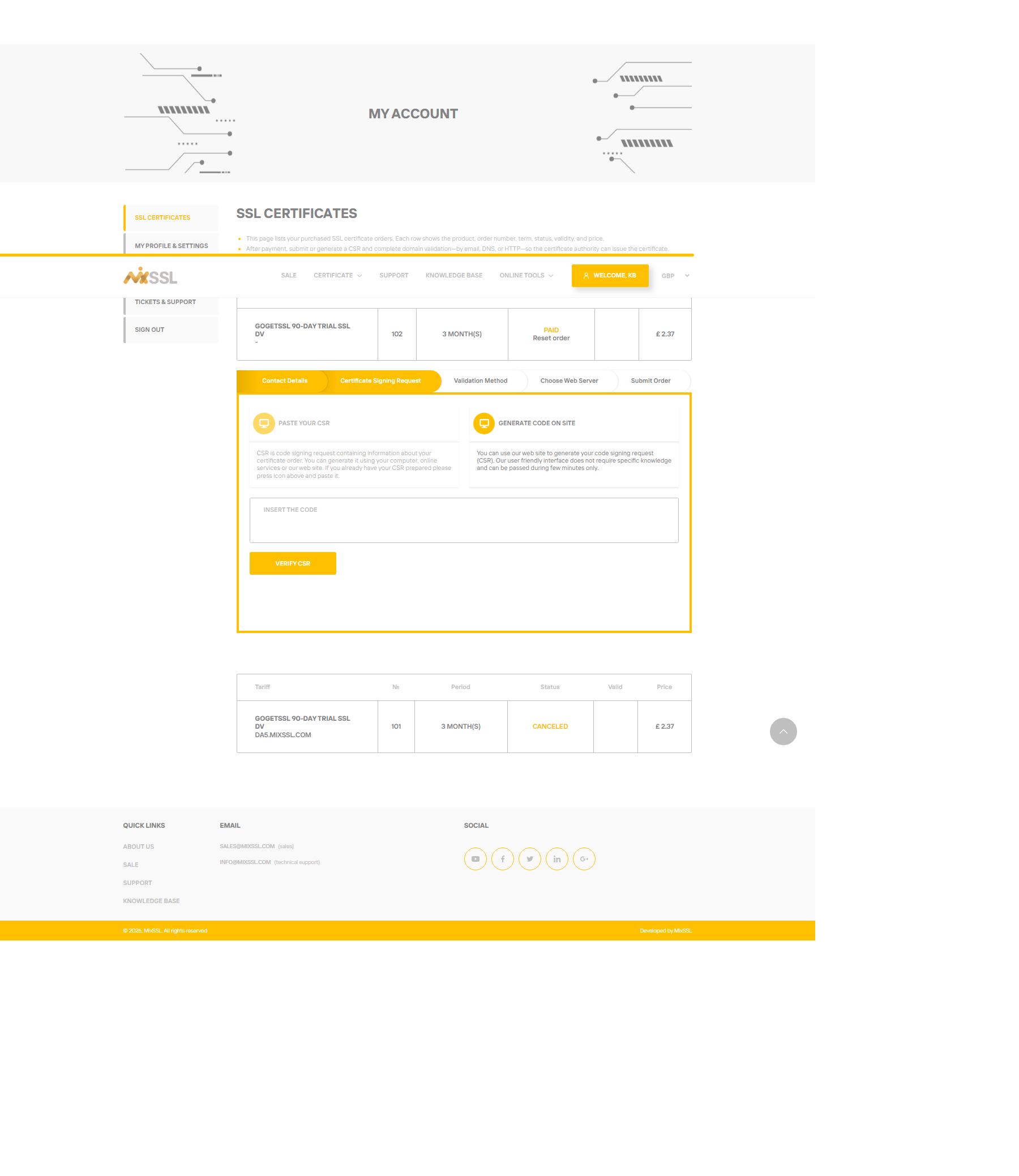
In /office, open the order wizard → Certificate Signing Request. Paste the full PEM block and click Verify CSR. Fix any errors, regenerate the CSR if needed, and run verify again before you continue.
Step 3 — Regenerate when necessary
Use the CSR Generator or your server tools to build a new CSR after fixes. Never reuse a private key you suspect was exposed.
Getting help
Still stuck after fixing the CSR? Use the contact form on the MixSSL website with your order number and the verify error text.