
After installation, open your website with https:// in Chrome, Firefox, Safari, or Edge. These checks take a minute and show the same warnings your customers see.
Step 1 — Load your site over HTTPS
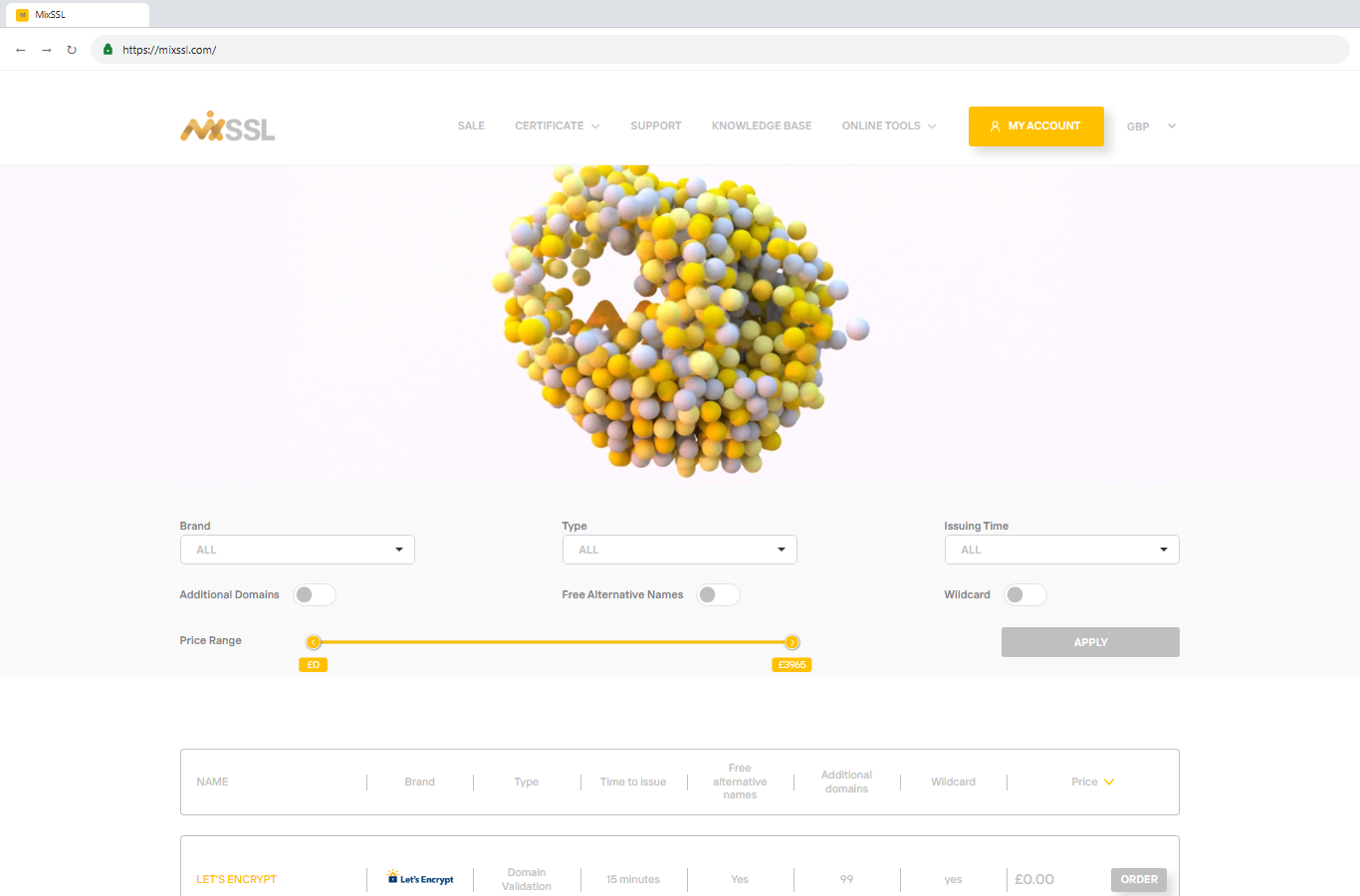
Type https://your-domain in the address bar. A working setup shows a padlock or “Connection is secure” message. You can practice on mixssl.com, which is always served over HTTPS.
Step 2 — Open certificate details
Click the padlock → view certificate or connection information. Confirm the name matches your site (for example www.yourbusiness.com) and check Valid until or expiry date.
Step 3 — Test more than the homepage
Load your homepage and one inner page (contact, shop) to catch mixed content where images or scripts still use http://.
Step 4 — Double-check the certificate file
Paste the certificate you installed into the free SSL Decoder on MixSSL. Compare expiry and domain names with what the browser shows.

If something looks wrong
If the padlock is missing, shows “Not secure,” or mentions an expired or invalid certificate, use the other articles in this section or our troubleshooting guides to fix the issue.
Getting help
Share a screenshot of the browser warning via the contact form on the MixSSL website.