
After issuance, download certificate files from your order in the MixSSL customer account. This guide explains what each download link contains and how the pieces fit together on your server.
Before you start
- A verified MixSSL account with an order in status Active.
- A secure place to store downloads — treat them like credentials.
- The private key that matches your CSR (MixSSL does not keep it if you generated the key on your server).
Step 1 — Open your account
Sign in and open My account → SSL Certificates (/office). When the certificate authority has issued your certificate, the order status becomes Active and download links appear under that order.
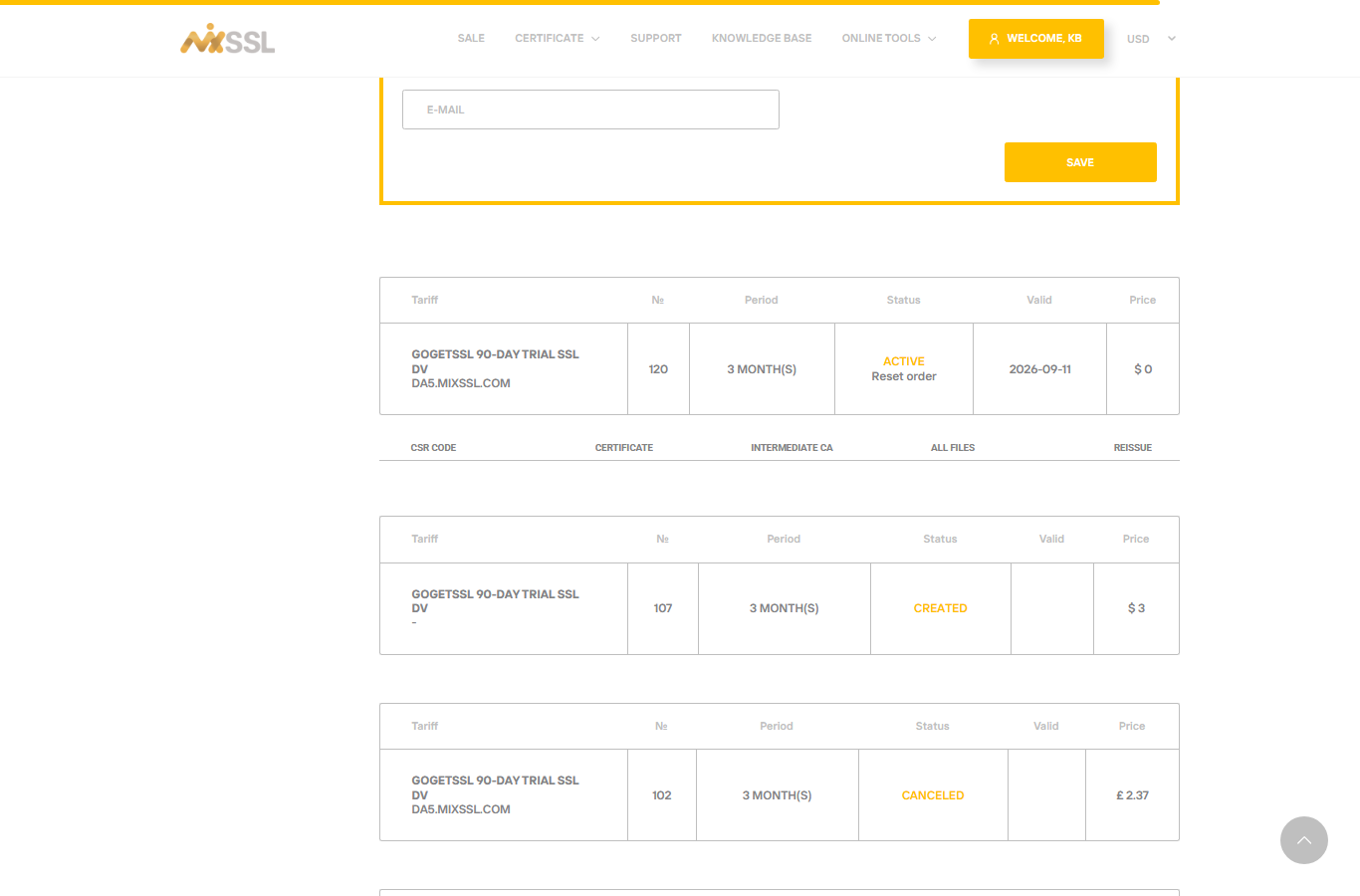
Step 2 — Know what each file is for
- Certificate (.crt or .pem) — Your site’s public certificate. Install it on the web server.
- Intermediate / CA bundle — One or more “chain” certificates. Install them so browsers trust your site certificate.
- Private key (.key) — Created when you made the CSR. It must stay on your server. If you used the MixSSL CSR Generator, you saved the key at generation time.
- ZIP (all files) — Convenient package; contents depend on the brand and server type you selected in the order wizard.
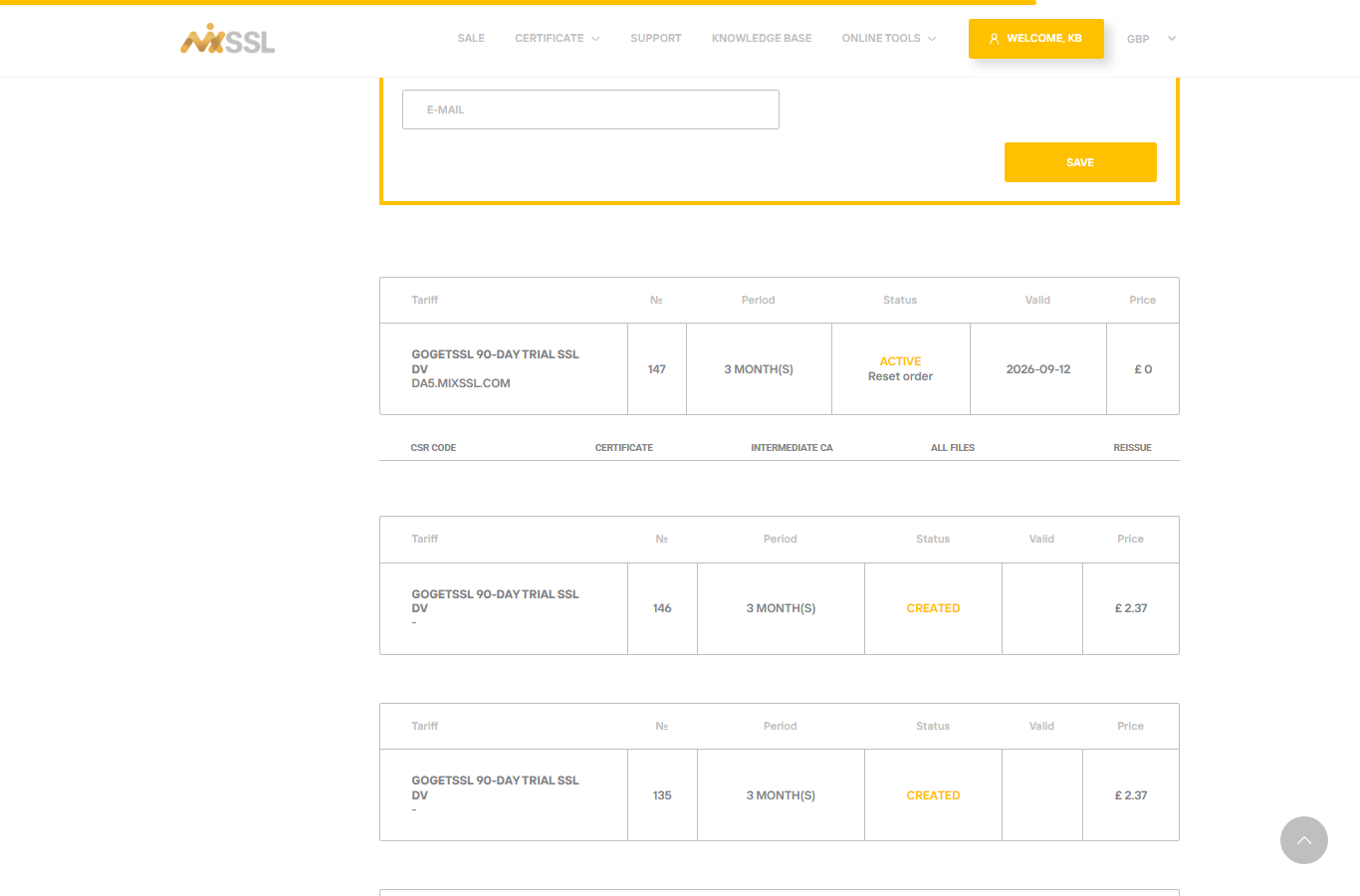
Step 3 — Back up before you replace an old certificate
If you are replacing an expiring certificate, save copies of the old certificate and key first. Plan a short maintenance window so you can fix typos without rush.
Getting help
Download links missing or order still processing? Use the contact form on the MixSSL website.