
This guide shows where to download issued certificate files from your MixSSL account and how to request a refund on eligible paid orders within the satisfaction window.
Before you start
- A verified MixSSL account with at least one order.
- For downloads: an order with status Active (certificate issued).
- For refunds: a paid order within the product’s refund window, with a verified card payment on file.
- The private key that matches your CSR — MixSSL does not keep a copy if you generated the key on your server.
Step 1 — Open your account and find an active order
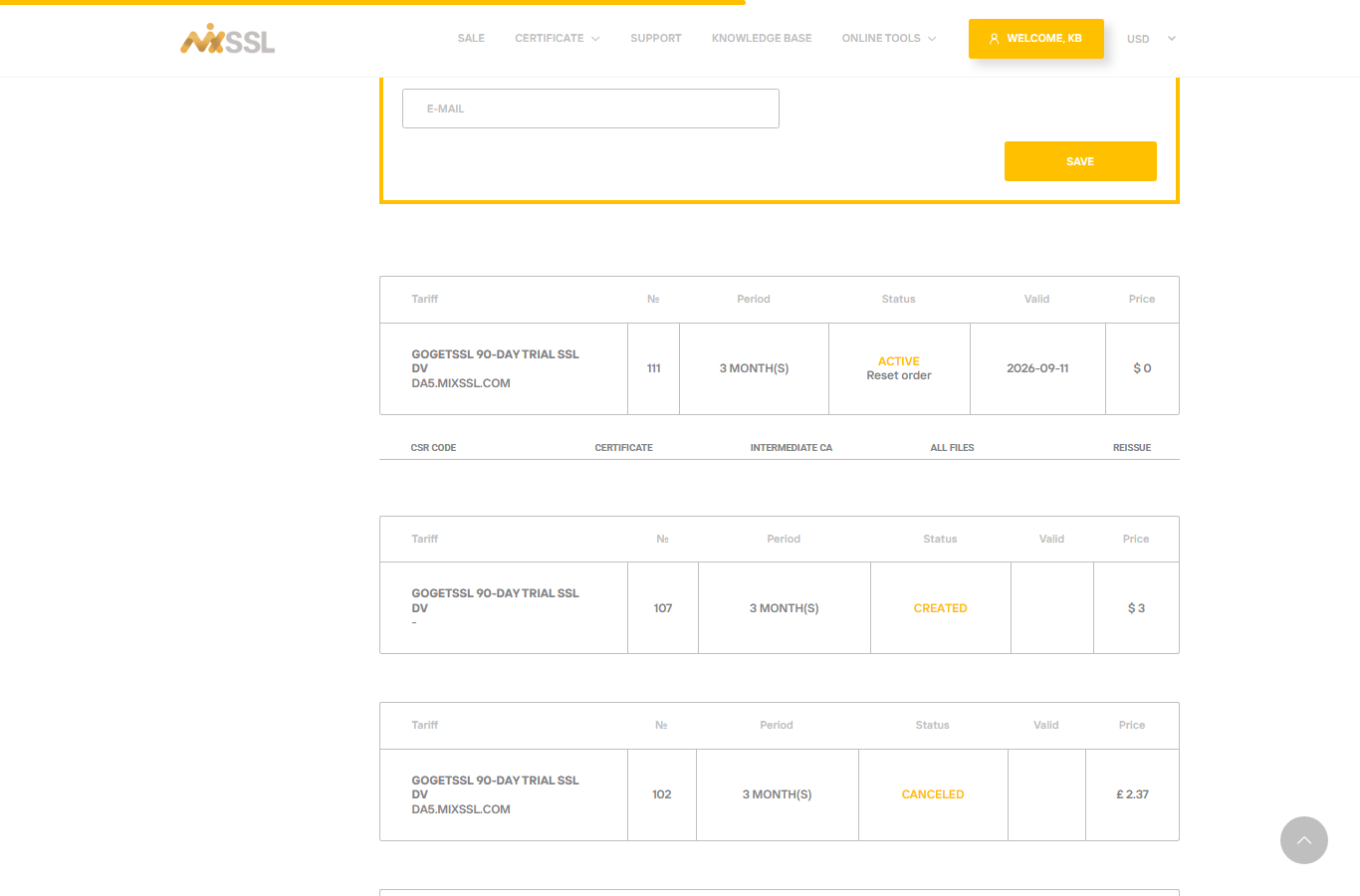
Sign in and open My account → SSL Certificates (/office). When the certificate authority has issued your certificate, the order status becomes Active and download links appear under that order.
Step 2 — Download your files
Under an active order you can download:
- CSR code — the signing request you submitted (for your records).
- Certificate — your issued certificate file (
.crt). - Intermediate CA — chain / intermediate certificate(s) browsers need to trust your site.
- All files — a ZIP bundle with the certificate, intermediates, and related files.
Store downloads securely. Install the certificate on your server together with the private key that matches the CSR.
Step 3 — Install with your private key
Combine the certificate and intermediate chain according to your web server or platform documentation. If you used MixSSL’s on-site CSR generator, you should have saved the private key when it was shown — MixSSL does not retain it.
Adding a domain later
Some active multi-domain orders let you add another hostname from the account area and choose validation for the new name. This is only available when your product includes spare SAN capacity.
Step 4 — Request a refund (paid orders)
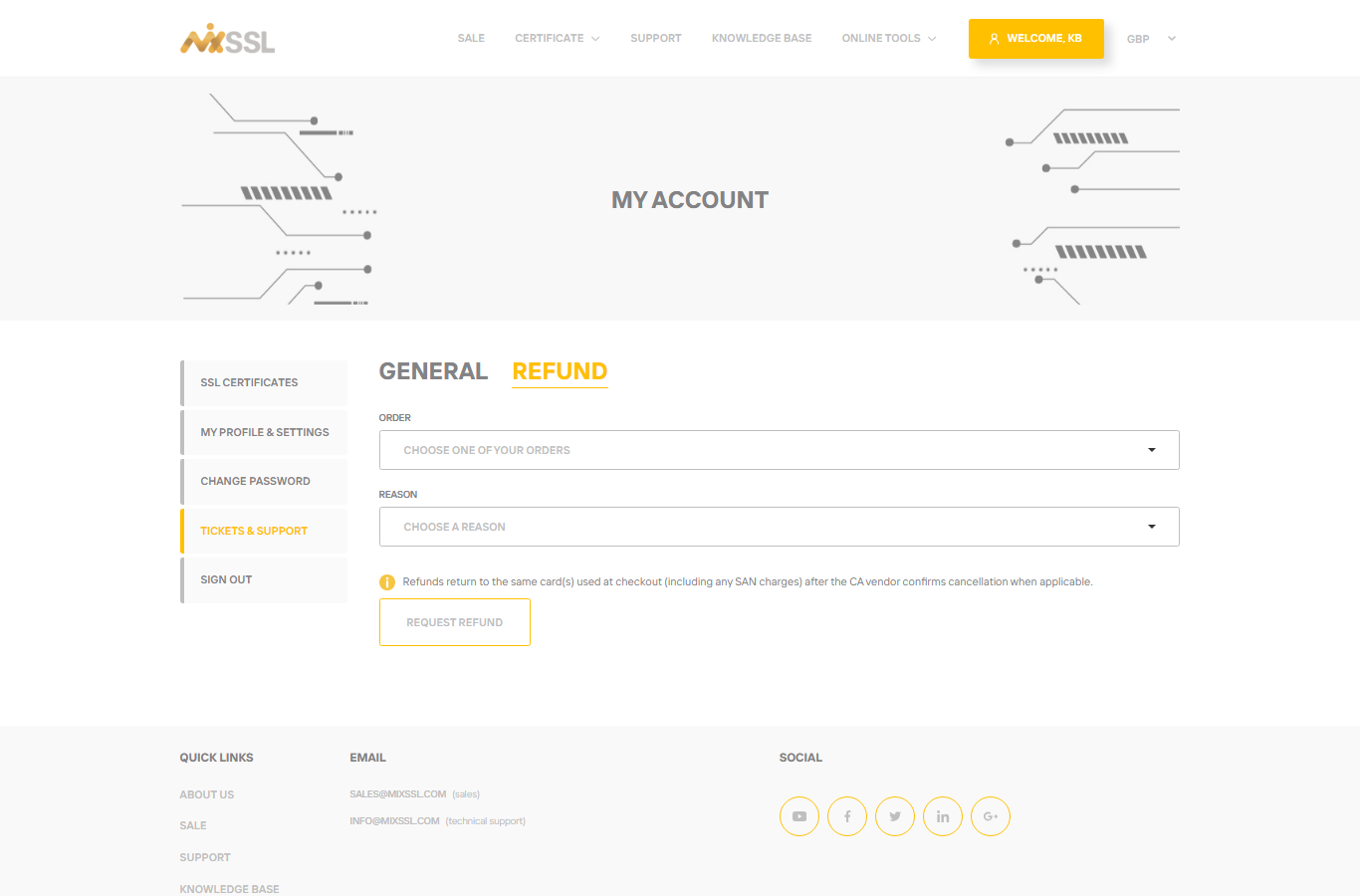
For paid certificates you may request a refund within 30 days of purchase if you are not satisfied, subject to order status and certificate usage. Open Tickets support (/tickets-support), switch to the Refund tab, choose your order and a reason, then submit.
Free certificates were not paid for, so there is no payment to refund. Orders outside the refund window, without a verified card payment, or already refunded do not appear in the list.
Refunds return to the same card(s) used at checkout after the CA vendor confirms cancellation when applicable.
Getting help
Questions about downloads or refunds? Use the contact form on the MixSSL website.